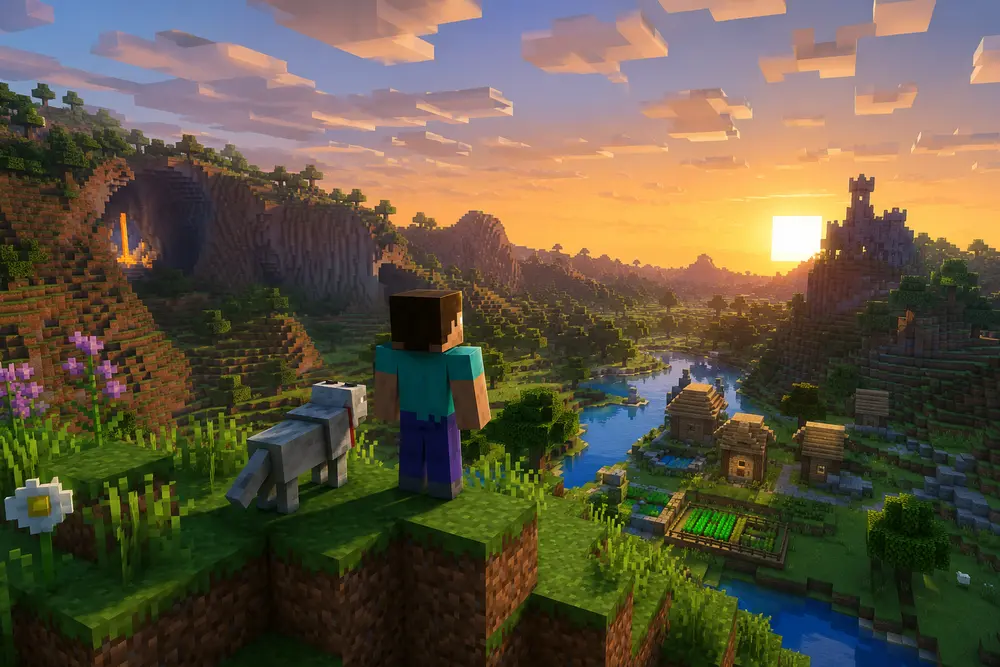
Minecraft Java is a top PC game for players who want to build, survive, and play with friends online. This guide explains multiplayer in simple words, so you can choose the best way to play. You will learn about LAN, servers, Realms, friends, safety, and common fixes. The goal is simple: help you join a world, invite others, and enjoy the game with less stress.
What Is Multiplayer?
Multiplayer means more than one player can join the same world. In Minecraft Java, you can mine blocks, build homes, fight mobs, trade items, and explore with other people. You can play with close friends or with players from many countries. The game feels bigger because every player can bring new ideas.
Multiplayer is not only one thing. You can use LAN in the same house, join a public server, make a private server, or pay for Minecraft Realms. Each choice has a different setup. Some are easy, and some need more work.
Why Multiplayer Is Popular
Minecraft Java multiplayer is popular because it gives players freedom. You can play Survival, Creative, PvP, SkyBlock, Bed Wars, Parkour, or roleplay. Some players like calm building. Other players like fights, teams, and mini-games.
Many servers have custom maps, shops, ranks, events, and rules. Some servers are small and friendly. Some are very large. Before joining, always read the rules and check if the server is right for you.
Best Ways to Play Minecraft Java Multiplayer
Before you start playing with others, it helps to know the main multiplayer options. Each option works differently. Some are best for friends in the same place, while others are better for online play. Below are the easiest ways to play with friends.
Option 1: Play on LAN
LAN means Local Area Network. This is best when players are in the same home, room, school, or office network. One player opens a single-player world, presses Esc, clicks Open to LAN, chooses settings, and starts the LAN world.
Other players open Minecraft Java, click Multiplayer, and look for the LAN game. It should show on the screen. LAN is simple because you do not need a paid server. But all players must be on the same local network.
Option 2: Join an Online Server
An online server is a world hosted on the internet. To join, open Minecraft Java, click Multiplayer, then use Direct Connection or Add Server. Type the server address, then click Join Server.
A server address can look like a website name or an IP address. Some servers also use a port, such as :25565. Always copy the address carefully. One wrong letter, number, or dot can stop the connection.
Option 3: Use Minecraft Realms
Minecraft Realms is the easiest choice for private servers for many players. It is a paid service from Minecraft. A Realm stays online, so your friends can join even when your own computer is off.
Minecraft Java Realms is made for Java players on Windows, Mac, and Linux. It is not the same as Bedrock Realms. Realms is good for small friend groups, family worlds, and players who do not want hard setup.
Option 4: Make a Private Server
A private server gives you more control than Realms. You can change server files, use plugins, set rules, add a whitelist, and choose special settings. This is good for serious groups and communities.
But a private server is harder. You may need router settings, a public IP, and server files. Sharing your home IP can be risky. Only share it with people you trust. Many players use paid hosting to make this easier.
Playing With Friends
The best way to play with friends depends on where they are. If your friends are in the same house, use LAN. If they are far away and you want easy private play, use Realms. If you want full control, use a private server.
Minecraft Java also has a Friends List feature in recent official updates and tests. This can make it easier to find friends who own Java Edition. Still, servers, LAN, and Realms are the main ways most players start multiplayer.
Game Version Matters
One of the biggest problems in Minecraft Java multiplayer is the use of the wrong version. If the server uses version 1.21, your game should also use a version the server accepts. If not, you may see “Outdated Client” or “Outdated Server”.
To fix this, open the Minecraft Launcher and choose the right installation version. Some servers support many versions, but not all do. Ask the owner which version to use before you start.
Mods and Plugins
Mods can add new mobs, blocks, tools, machines, magic, and worlds. Minecraft Java is famous for mods, but modded multiplayer needs care. Usually, the server and every player must use the same loader, game version, and mod files.
Plugins are different. Many servers use plugins for shops, homes, ranks, land claims, and anti-grief tools. Players often do not need to install anything for plugin servers.
Safety Tips
Safety is very important in multiplayer. Do not share your real name, address, school, phone number, password, or private photos. Do not click strange links in chat. Do not download files from people you do not trust.
Use mute, block, or report tools when needed. For younger players, parents should check account privacy settings and choose safe servers. A good server has clear rules and active helpers.
Common Problems and Fixes
If Minecraft Java cannot join a server, first check your internet. Then check the server address and game version. Make sure the server is online and not full. If the server is private, ask if you need to be on the whitelist.
For LAN problems, check that all players use the same network. Also allow the game through the firewall. Restarting the game, computer, or router can help. If mods are used, check every mod file.
Best Choice for Beginners
For new players, LAN is best for the same house. Realms is best for easy private online play. Public servers are best for mini-games and meeting other players. A private server is best for control, but it needs more skill.
Minecraft Java gives players many ways to connect. Start with the simple option first. After you understand the basics, try servers, mods, and larger worlds. Multiplayer becomes more fun when you know the rules and safety steps.
Final Thoughts
Minecraft Java multiplayer can look confusing at first, but it becomes easy when you know the choices. LAN is local, servers are online, Realms is simple and private, and private servers give the most control.
For the smoothest start, match your version, use the correct address, protect your account, and play on trusted worlds. With the right setup, Minecraft Java becomes a shared adventure with friends.
Read More: Tesla Powerwall 3 specs: output power & current configurations
Frequently Asked Questions
How do I play multiplayer in Minecraft Java?
Open the game and choose Multiplayer. You can join a server, use LAN, or play on Realms.
Can Minecraft Java play with Bedrock?
Not normally. Java and Bedrock are different editions, so they do not connect by default.
Why can’t I join a server?
The server may be offline, full, private, or on another version. Check the address and version first.
Is Minecraft Realms good for beginners?
Yes. Realms is easy because Minecraft hosts the server for you.
Do I need mods for multiplayer?
No. Most servers do not need mods. Modded servers only work when everyone has the same mod setup.