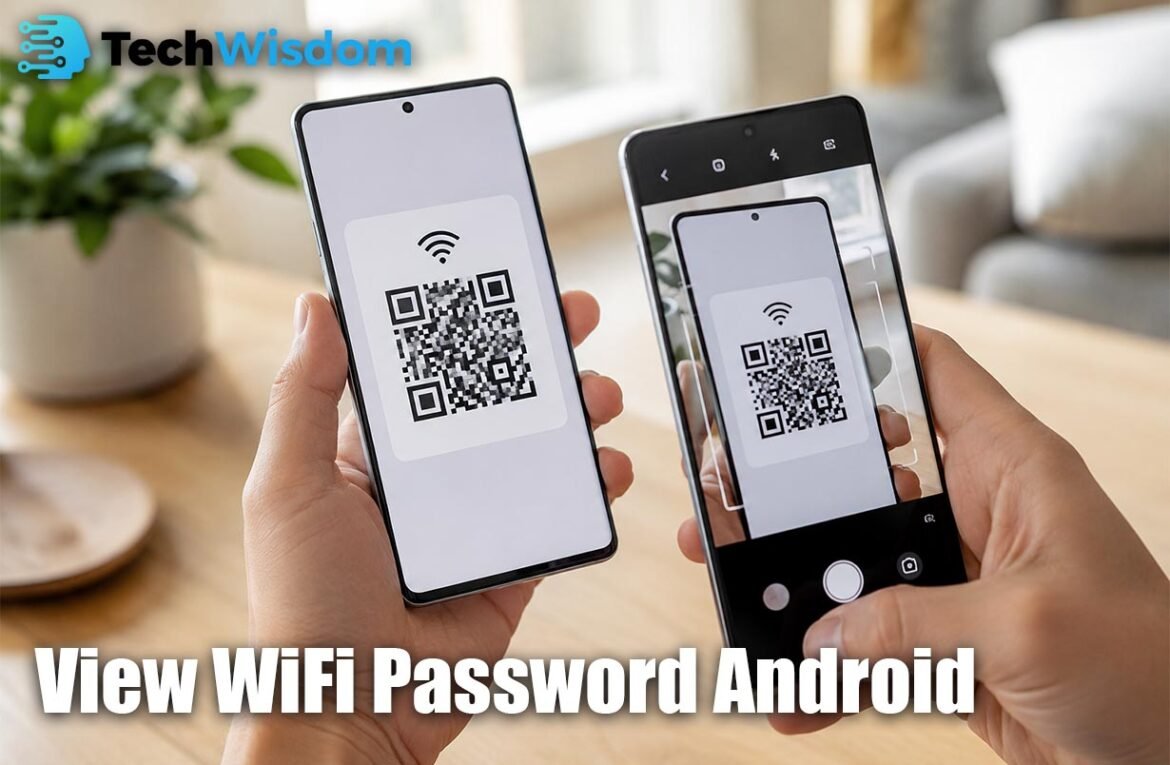
Forgetting a WiFi password can be annoying, especially when your Samsung Android phone is already connected to the network. The good news is that modern Samsung phones offer simple ways to check or share saved WiFi details. If you want to view wifi password android, you can usually use the built-in WiFi settings and QR code feature. You do not need root access or a risky third-party app.
How to View WiFi Password on Samsung Android
On most recent Samsung Galaxy phones, the easiest method starts inside the Settings app. Open Settings, tap Connections, and then choose Wi-Fi. Find the network that is currently connected and tap the gear icon beside its name. This opens the network details page where Samsung provides more information about the connection.
Look for the QR Code option near the bottom of the screen. Tap it, and your phone may ask you to confirm your PIN, password, fingerprint, or screen lock. After verification, Samsung will display a QR code. This is one of the easiest ways to view wifi password android information without installing extra software.
View WiFi Password on Samsung Using WiFi Settings
Samsung keeps WiFi controls inside the Connections section. The normal path is Settings > Connections > Wi-Fi. Your current WiFi network usually appears at the top with the word Connected under its name. Tap the settings icon next to that network to open its full details.
Depending on your Android version and Samsung One UI version, the screen may look slightly different. Some devices may show more network information than others. Even if the password is not written as normal text, the QR code contains the information needed to connect another supported device to the same WiFi network.
Find WiFi Password Through the QR Code Option
The QR code method is very useful because it allows you to share WiFi without typing a long password. Open the connected network settings and tap QR Code. Another Android phone can scan this code with its camera and join the network. This makes view wifi password android tasks much easier for home users.
Some Android phones may also display the actual WiFi password below or near the QR code. Samsung phones can behave differently depending on their software version. If you only see the QR code, this does not mean the feature is broken. Samsung may simply use QR sharing instead of showing the password as plain text.
How to View a Saved WiFi Network on Samsung
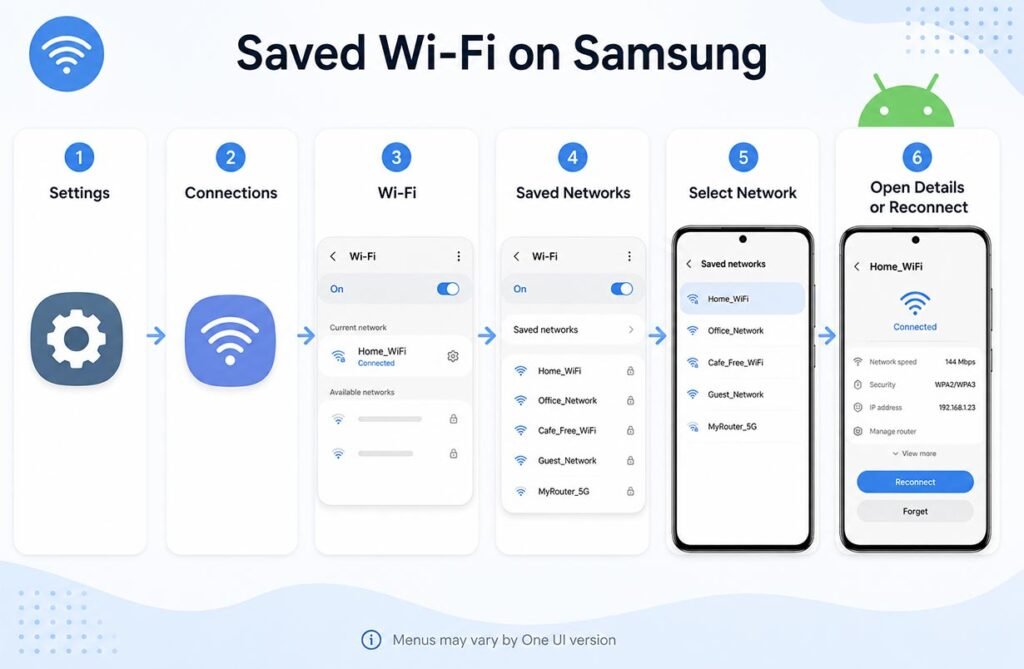
You may also want to check a network that your Samsung phone connected to in the past. Open Settings > Connections > Wi-Fi and look for options such as Manage Networks, Saved Networks, or advanced WiFi settings. The exact name can change between Samsung models and One UI versions.
Choose the saved network you want to check. Some Samsung versions allow you to open its details, while others give fewer options for networks that are not currently connected. If the QR code option is unavailable, reconnecting to the saved network may make the sharing feature available again.
View WiFi Password on Samsung Without Root
Older Android tutorials often suggested rooting the phone to access WiFi password files. This is usually unnecessary on modern Samsung devices. Current Android versions provide built-in network sharing tools, so most users can view wifi password android connection information without changing important system files.
Rooting can also create security problems and may affect some banking, security, or Samsung services. For normal WiFi password sharing, the built-in Samsung method is safer and easier. Use the QR code feature first before trying any advanced method that changes Android system access.
View WiFi Password on Samsung Without an App
You do not need a WiFi password viewer app for most recent Samsung Galaxy phones. The required option is already included in Samsung Settings. This is important because many third-party apps claim they can reveal every saved WiFi password, but Android limits access to protected network information.
Using Settings also reduces privacy risks. An unknown app may request storage, location, accessibility, or other permissions that are not needed for simple WiFi sharing. If your goal is to view wifi password android details, Samsung’s built-in QR code option should normally be your first choice.
Why the WiFi Password May Not Appear as Text
A common problem is that users expect to see the WiFi password written under the network name. On some Samsung devices, the password is not shown directly. Instead, the phone creates a WiFi QR code that another device can scan.
This behavior depends on the Samsung model, Android release, and One UI version. Google Pixel and other Android brands may show WiFi information differently. If your Galaxy phone only provides a QR code, you can still use it to connect another device without entering the password manually.
How to Share a Samsung WiFi Password With Another Phone
First, open the WiFi QR code on your Samsung phone. On the second device, open the Camera app and point it at the QR code. A WiFi connection message should appear. Tap it to connect to the network. This method is useful when helping family members, friends, or your own second device.
Only share the code with people you trust. A WiFi QR code can provide access to your network, just like a written password. Avoid posting screenshots of it on social media. If the code reaches the wrong person, change your router’s WiFi password to protect your home network.
What to Do If the QR Code Option Is Missing
If you cannot find the QR code option, first make sure your Samsung phone is connected to the WiFi network. Then open the network details again through Settings > Connections > Wi-Fi. The sharing option may not appear when the phone is disconnected from the network.
You should also check for a Samsung software update. Menu names and WiFi features can change between Android and One UI versions. Restarting the phone can also fix small software problems. Avoid downloading random password apps just because the QR code option is temporarily missing.
Fix Common WiFi Password and Connection Problems
If another phone cannot connect after scanning your QR code, check whether the original Samsung phone still has internet access. If the router password was recently changed, your phone may still have old connection information saved. In that case, forget the network and reconnect using the new password.
You can also restart the router and both phones. Make sure the QR code is clearly visible and increase your screen brightness if the second phone cannot scan it. These simple steps solve many view wifi password android and WiFi sharing problems without advanced tools.
FAQs
Can I see my WiFi password on a Samsung phone?
You may be able to see it on some Samsung versions. Other versions mainly provide a QR code for sharing the WiFi connection.
Do I need root access to find my WiFi password?
No. Modern Samsung phones normally allow WiFi sharing through Settings without root access.
Where is the WiFi QR code on Samsung?
Open Settings > Connections > Wi-Fi, tap the gear icon beside the connected network, and choose QR Code.
Can I share Samsung WiFi with another Android phone?
Yes. Show the WiFi QR code on your Samsung device and scan it with the second phone’s camera.
Why can’t I see my WiFi password as text?
Your Samsung software may only provide a QR code. This depends on the Galaxy model and One UI version.