System Thread Exception Not Handled is a Windows stop error that can appear after an update, driver change, or hardware problem. It often causes a Blue Screen of Death (BSOD) followed by an automatic restart. The error is usually connected with stop code 0x0000007E. While it may look serious, many cases can be fixed by checking recent updates, drivers, Windows system files, and hardware.
What Does System Thread Exception Not Handled Mean?
The System Thread Exception Not Handled error appears when a Windows system thread creates an exception that the operating system cannot safely manage. Windows stops the computer instead of allowing the problem to continue and possibly damage files or system data.
A system thread works in the background and helps Windows communicate with hardware, drivers, memory, and other important components. If a driver sends an invalid command or tries to access protected memory, Windows may crash and display the stop error.
Why Does It Appear After a Windows Update?
A new Windows update may change important system files, security features, or hardware support. An older device driver that worked before the update may no longer work correctly with the new Windows version. This is one of the main reasons users see the error soon after installing an update.
The update itself is not always faulty. The real problem may be an outdated graphics driver, storage driver, chipset driver, antivirus program, or motherboard firmware. A Windows update may simply expose an existing compatibility problem that was not visible before.
What Causes the Error?
Several problems can cause System Thread Exception Not Handled. Device drivers are among the most common causes because they work closely with the Windows kernel. Graphics, network, audio, storage, and chipset drivers can all create a crash if they become damaged or incompatible.
Other possible causes include corrupted Windows files, faulty RAM, storage errors, outdated BIOS or UEFI firmware, new hardware, unstable overclocking, and security software. If crashes continue even after driver repairs, checking hardware becomes more important.
How to Find the Driver Causing the Crash
Look carefully at the blue-screen message before the computer restarts. Windows may show a “What failed” message followed by a filename ending in .sys. This filename can provide an important clue about the device driver involved in the crash.
For example, if the same driver filename appears during every crash, search for which device or software uses that driver. You can also open Event Viewer and check the System log for errors that happened shortly before the crash. Advanced users can examine Windows memory dump files with WinDbg.
Start Windows in Safe Mode
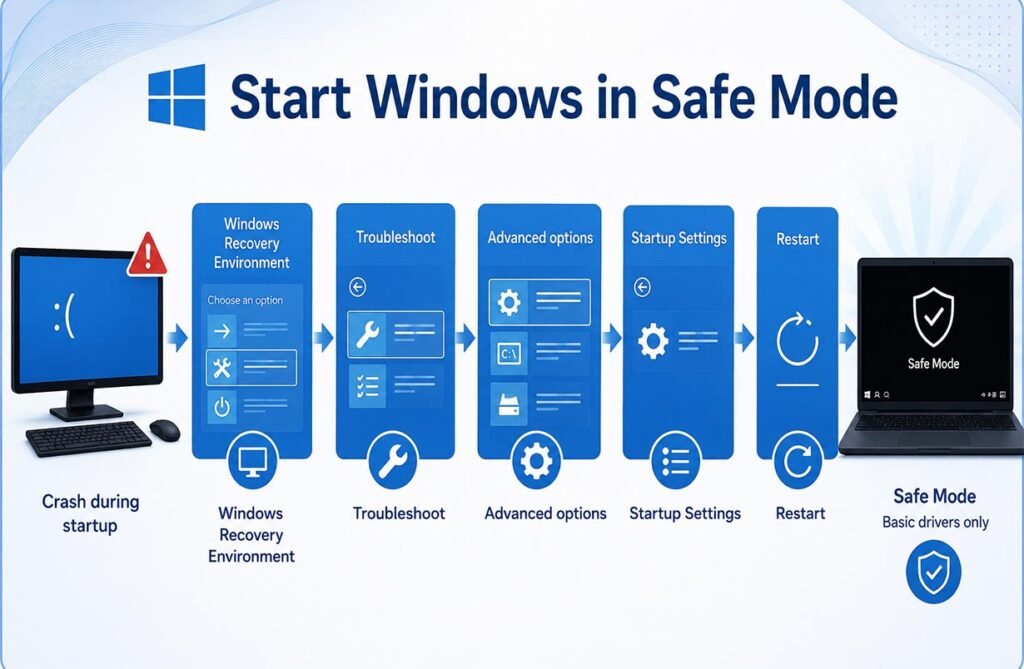
Safe Mode is useful when the computer crashes during normal startup. It loads Windows with only basic drivers and services. If the computer works normally in Safe Mode, an extra driver, program, or service may be causing the problem.
Open Windows Recovery Environment, select Troubleshoot > Advanced options > Startup Settings, and restart the PC. Choose Safe Mode when the menu appears. Once Windows starts, you can remove recent software or repair drivers without loading many third-party components.
Update or Roll Back Problem Drivers
If System Thread Exception Not Handled started after a driver update, open Device Manager and check the device that may be responsible. Graphics cards, storage controllers, network adapters, and chipset devices are important areas to inspect first.
Open the device properties and select Roll Back Driver if the problem began after installing a newer version. If the driver is old, install a newer compatible version from Windows Update or the computer manufacturer’s official support page. Avoid unknown driver-download websites because incorrect drivers can make the problem worse.
Repair Damaged Windows System Files
Corrupted Windows files can also cause stop errors. Windows includes System File Checker, which can scan protected system files and replace damaged versions. Open Command Prompt or Windows Terminal as an administrator and run sfc /scannow.
You can also use DISM when the Windows component store needs repair. After repairing files, restart the computer and check whether the crash returns. These tools are useful for software corruption, but they cannot repair faulty RAM, damaged storage hardware, or incompatible third-party drivers.
Remove the Recent Windows Update
If the problem started immediately after a Windows update, removing that update can help confirm whether it created a compatibility issue. Open Settings > Windows Update > Update history > Uninstall updates and check recently installed updates.
If Windows cannot start normally, use Windows Recovery Environment and select Troubleshoot > Advanced options > Uninstall Updates. Removing an update should normally be a troubleshooting step rather than a permanent solution because important Windows updates can include security fixes.
Use System Restore or Startup Repair
System Restore can return Windows system settings, drivers, and registry information to an earlier state. Choose a restore point created before the crashes started. Personal documents normally remain unchanged, but programs and drivers installed after that restore point may be removed.
You can also try Startup Repair if Windows cannot boot correctly. It checks startup files and other problems that may prevent Windows from loading. Both tools are available from the Advanced options section of Windows Recovery Environment.
Check RAM, Storage, and Firmware
If software fixes do not stop System Thread Exception Not Handled, hardware should be checked. Faulty RAM can create random memory errors, while a failing SSD or hard drive can damage system files and drivers. Windows memory diagnostics and manufacturer hardware tools can help detect these problems.
Also check whether your computer manufacturer offers a newer BIOS or UEFI version. Firmware updates can improve compatibility with newer Windows versions. Follow the manufacturer’s instructions carefully because interrupting a firmware update may prevent the computer from starting.
What If the Error Keeps Coming Back?
Repeated crashes may require deeper testing. Check whether different driver names appear during each crash. Random errors can sometimes point to RAM, storage, power, overheating, or motherboard problems rather than one specific driver.
A Windows memory dump can also provide useful technical information. Tools such as WinDbg can show the crash code, exception, loaded drivers, and call stack. If Windows still crashes after driver updates, file repairs, system restore, and hardware testing, reinstalling or resetting Windows may become the final software option.
How to Reduce Future Windows Stop Errors
Keep Windows and important hardware drivers updated, but use drivers from Windows Update or official hardware manufacturers. Create backups before major Windows upgrades and avoid interrupting updates or firmware installations.
Keep enough free storage space and watch for unusual disk or memory errors. If System Thread Exception Not Handled appears after installing new hardware or software, record what changed before the first crash. This simple information can make troubleshooting much faster and help you find the real cause.
FAQs
Is System Thread Exception Not Handled a serious error?
It is a Windows stop error that forces the computer to shut down safely. One crash may not be serious, but repeated crashes can indicate a driver, system file, memory, storage, or hardware problem.
Can a Windows update cause this error?
Yes. A Windows update can create compatibility problems with older drivers or software. However, the update itself may not be damaged. An outdated driver is often the real cause.
Can Safe Mode fix the problem?
Safe Mode does not automatically repair the computer, but it can help identify the cause. If Windows works correctly in Safe Mode, a third-party driver, service, or application may be responsible.
Should I uninstall the latest Windows update?
You can temporarily remove a recent update if the crashes started immediately after it was installed. It is better to also check drivers because removing security updates for a long time can reduce protection.
Do I need to reinstall Windows?
Usually not. Try driver updates, Safe Mode, System File Checker, DISM, System Restore, and hardware checks first. Reinstalling or resetting Windows should normally be considered only when other methods fail.