If your internet connection has gone down, it may be stressful, particularly if you are working, learning or watching streaming shows that rely on it for content. Fortunately, there are some NETGEAR router troubleshooting tips that can resolve issues without needing to make any significant changes. Many of the problems associated with NETGEAR routers can be solved with a simple check, a restart, or a complete factory reset. This guide explains you how to reset FW in simple steps, and you know what to do before, during and after resetting.
Before resetting, please review the following points:
Always do the basic first before resetting the router. Be sure the Power light is illuminated. Make sure that the power cord is secure. Inspect Ethernet cable (modem/Router). It should be in the router’s Internet port and NOT a normal LAN port!
Now, check your modem. If the modem doesn’t have Internet, the router cannot share Internet. Turn on the modem again, and wait for the lights to settle. Then, turn the router back on. This minor update will resolve many Wi-Fi and Internet issues without wiping your settings.
Differentiate Restart and Factory Reset
Restarting is a safe, simple process. Switches the router on and off. It will not remove your wi-fi name, password or router settings. Always attempt to restart before doing a factory reset.
A factory reset is more potent. Resets the router to its factory settings. Clears your custom Wi-Fi name, Wi-Fi password, admin password, guest network and settings. Use it sparingly when the normal fixes don’t work.
Your NETGEAR Router May Stop Working:
There are many reasons a router may cease function, either small or large. Modem may lose connection. The cable may become loose. The firmware may get stuck. The router can also overheat if it is left in a sealed area for extended periods of time.
It’s not always the router. It could be an outage with the ISP, weak signal, faulty Ethernet cable, or having too many devices plugged in. That is why it is good to check the modem and cables first, to save time.
If a Factory Reset is the appropriate step.
A Factory Reset can be performed if the router is stuck, slow or fails to provide Internet connection after normal steps. It can also be helpful if you have forgotten the admin password to your router and cannot retrieve it. When router settings are broken, a reset will give the router a new beginning.
It can also come in handy if does not open, Wi-Fi is lost, or the Internet light remains amber. However, keep in mind that a factory reset won’t resolve ISP problems, modem issues or cable damage.
To reset Netgear Router Using Reset Button, follow these steps:
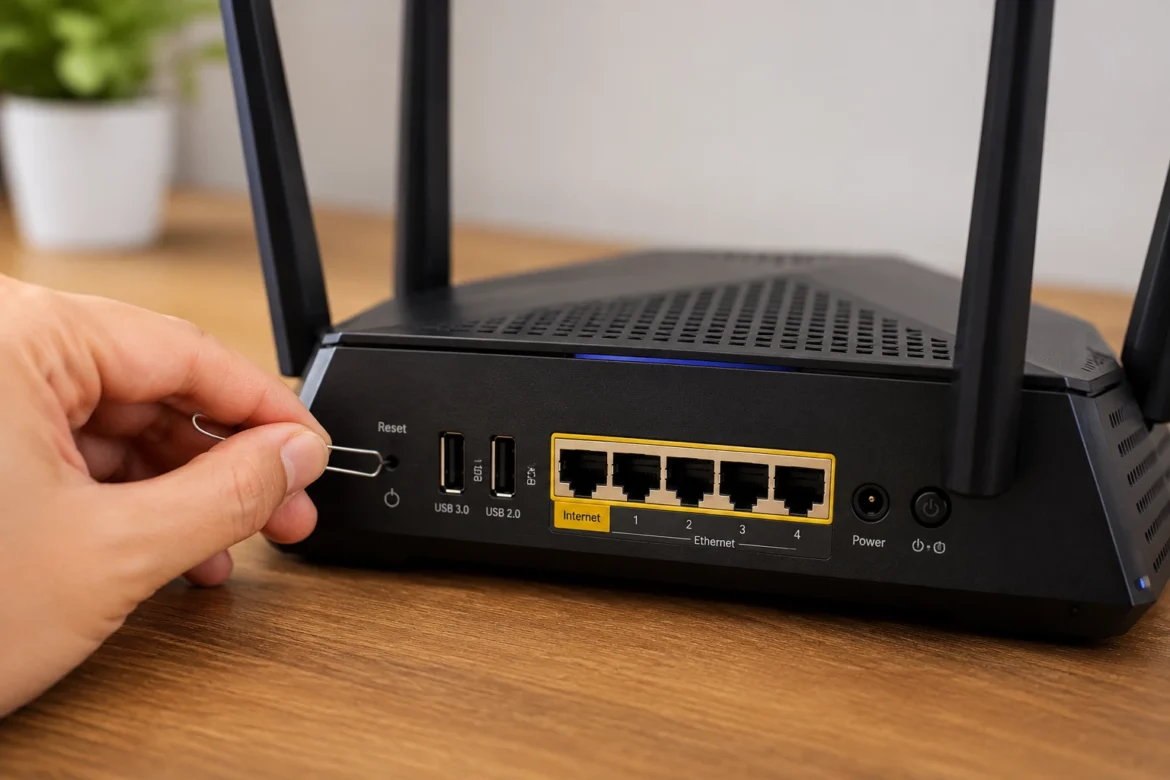
Do not unplug or switch off the router. Look on the back or side for the Reset or Restore Factory Settings button. On some models, this button may be located in a small hole, and you will need a straight paper clip.
Hold down the button for approximately 7 seconds. Then let it go and wait. The router will boot back up and reset to the factory default. Do not disconnect the router at this time. Wait until power LED stops flickering before using it again.
What will happen when the reset is completed?
Your previous Wi-Fi name might get lost after reset. Your previous Wi-Fi password will not be accepted. This is normal as the router is back to factory settings! Check the label on the router for the default WiFi name and key.
Many NETGEAR routers have admin as their default username and admin as its default password—when you log in again. Both are case-sensitive. Some newer models might require to enter a new admin password during installation.
Once reset, the router must be set up again.
For many users, the NETGEAR Nighthawk app is the most convenient option. Connect the phone with the default Wi-Fi of the router, open the application and complete the steps. The app can be used to generate a new name and password for your Wi-Fi network.
Another way to view it is with a browser. Log in to the router network, navigate to 192.168.1.1, or attempt to navigate to 192.168.1.1. Next go to the setup page. If you’re using special settings, such as PPPoE, with your Internet provider, you might have to re-enter these settings.
After the reset, ensure that there is no Internet.
If you still don’t have the Internet, you will need to begin with the cable. The modem cable needs to be plugged into the Internet port of the router. If you have another Ethernet Cable, use it. A broken or damaged cable can cause the router to appear broken.
Test the modem, too. Plug the computer into the modem. If the Internet is not available, contact your Internet Service provider. If it can be determined the modem is working, but the router is not, then update the router firmware once access is regained.
Fix Routerlogin.net Not Opening
If the routerlogin.net page won’t open, ensure that your phone or computer is connected to the NETGEAR network. Stop mobile data, VPN and other WiFi usage. Now repeat in a new browser window.
You can also type 192.168.1.1 or 192.168.0.1 in the browser address bar. If it still fails to open, power the router up again. If this still fails, a factory reset might be necessary.
The most common setup mistakes and how to avoid them
Never press the WPS button – not reset button. If you need to factory reset your computer, use the computer password or your password. Also, avoid holding the reset button down for less than one or two seconds. That might not kick off the reset.
While firmware is updating, do not reset the router. Never unplug the power while the router is restarting. Your previous WiFi password won’t work after reset. The router will need to be reconfigured again, and the devices reconnected.
Once reset, follow these best safety tips:
Once you learned about How to reset Netgear Router secure your network immediately. Set up a solid admin password. It is recommended to use a different strong password for the Wi-Fi. Avoid using common terms such as your name, phone number or “12345678.”
Ensure that the router firmware is updated, if possible. Firmware updates may allow for bug fixes and enhanced security measures. Make sure to set up the router in an open space, away from heat, and away from walls. This allows the signal to stay strong and stable.
If you need to contact your ISP or NETGEAR Support, the following timing may be helpful:
If it doesn’t have Internet, the service light is not on, or all devices are offline, call your ISP for help. If so, the issue might be due to a problem outside your home network. A second reset of the router will do little to aid the situation.
If the router fails to turn on or the reset button doesn’t operate or the power LED is flashing for an extended period, contact NETGEAR Support. If the router crashes after upgrading the firmware, try to ask for some help.
FAQs
If the Netgear router fails to work then how to reset it?
Leave it on and touch the Reset button with a paper clip for approximately 7 seconds and then remove the paper clip and wait for the router to restart.
If I factory reset, will my Wi-Fi password go away?
Yes. The factory reset will remove your custom Wi-Fi name and password, admin password and any other saved settings.
What is the default username and password for the NETGEAR login page after it is reset?
Many models have admin as their username and password as their default password. Some models require you to build a new model.
When a router is reset and still doesn’t work, what could have gone wrong?
It could be the modem, ISP, Ethernet cable or ISP settings. Test modem before blaming the router.
Do I need to use the Nighthawk app to set up my router?
Yes. From any browser on the router network, you can use the routerlogin.net, 192.168.1.1, or 192.168.0.1.