Cutout Pro Passport Photo Maker is an online AI tool for making passport, visa, and ID photos from a normal image. It helps users remove the background, add a clean background, resize the photo, and prepare it for digital use or printing. The tool supports common photo sizes like 2×2 inches and 4×6 inches, which are often used for official documents.
What This AI Passport Photo Tool Does
This tool helps people make a professional document photo without going to a photo studio. A user can upload a picture, and the system can change it into a passport-style image. It is useful for travel documents, visa forms, ID cards, student cards, driving licenses, and other official needs.
The tool uses AI technology to find the person in the photo and separate them from the background. After that, it can place the person on a plain background. This is important because many official photos need a clean and simple background.
Why People Use Cutout Pro Passport Photo Maker
Many people use this tool because it saves time. They do not need to visit a studio, wait for editing, or pay again for small changes. They can take a photo at home with a phone or camera and upload it online.
It is also useful for people who need photos quickly. For example, someone may need a visa photo for an online application or a passport-size photo for a form. With this tool, they can prepare the photo faster and download it in a useful format.
How the AI Background Remover Helps
The AI background remover is one of the most useful features. It removes messy backgrounds, walls, furniture, shadows, or other objects behind the person. Then it can replace the old background with a plain color, such as white.
This makes the photo look more official and clean. Cutout. Pro also offers a separate background remover tool, and its passport photo tool uses similar AI-style editing to improve document photos.
Step-by-Step Way to Create a Passport Photo
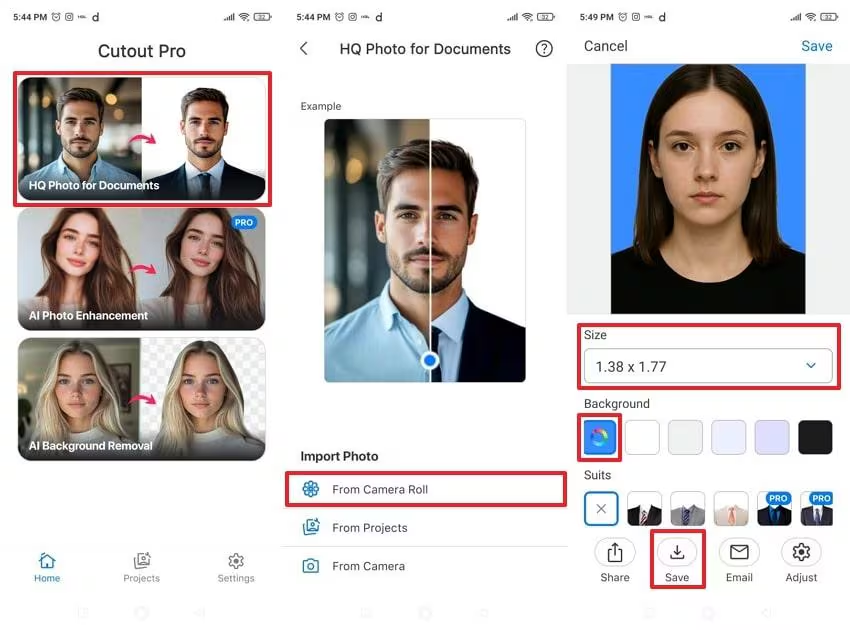
First, take a clear photo. Stand or sit in front of the camera and look straight. Keep your face relaxed. Do not wear sunglasses. Make sure your eyes are open and your face is not covered.
Next, upload the image to the tool. Choose the needed document type or size. The AI will remove the background, crop the image, and resize it. After checking the result, you can download the file or prepare it for printing.
Supported Photo Sizes and Formats
The tool supports common document photo sizes, such as 2×2 inches, 3×4 inches, 4×4 inches, 4×6 inches, and 5×6 inches for passport, visa, ID, and license photos.
It can also help users create printable photo sheets. This is useful when someone wants many copies on one page. The Pro version says users can download JPG, PNG, or print layout files, depending on their need.
Best Photo Tips Before Uploading
A good starting photo gives a better final result. Use natural light or soft indoor light. Avoid strong shadows on the face. Keep the camera at eye level. The face should be clear, sharp, and not blurry.
Also, wear simple clothes and avoid busy patterns. Keep hair away from your eyes. Do not use heavy filters. For official documents, your face should look natural. The AI can improve the background, but it should not change your real identity.
Free and Paid Use Options
Users may be able to try the tool online and preview results. However, high-quality downloads, watermark-free files, or advanced options may need credits or a paid plan. This is common with many online AI editing tools.
Cutout Pro Passport Photo Maker also has a Pro version. The Pro page mentions features like background remover, face cutout, retouch, size selection, and high-quality download options.
Where the Mobile App Can Help
Also has a passport photo app listed on the Apple App Store. The app description mentions AI background removal, background color changes, passport-size photo creation, saving, sharing, printing, and email use.
This is helpful for mobile users. They can take a photo, edit it, and save it from their phone. It is a good option for people who do not want to use a computer.
Important Things to Check Before Submission
Always check the official rules before sending your photo. Each country, embassy, school, or office may have different rules. Some may ask for a white background, while others may allow light blue or another color.
Check the photo size, file size, background color, head position, and image format. Also check if digital editing is allowed. The tool can help you create the photo, but the final approval depends on the authority that receives it.
Is This Tool Worth Using?
Cutout Pro Passport Photo Maker is worth using for people who want a fast and simple way to make document photos. It is useful for home users, students, travelers, job seekers, and small businesses that need clean ID-style photos.
Its best value is the mix of AI background remover, auto crop, photo resizing, and print-ready output. It can save time and make the process easier. Still, users should always compare the final photo with the official photo rules before using it for a real application.
FAQs
What is this AI passport photo tool used for?
It is used to create passport, visa, ID, license, and other document photos from a normal picture.
Can it remove the background from a photo?
Yes. The tool uses AI background removal to remove the old background and replace it with a cleaner one.
Can I use it for visa photos?
Yes. It can be used for passport, visa, ID, and license photos, depending on the size you choose.
Does it support printable photo sheets?
Yes. It can help prepare photos for printing, including common layouts like 4×6 inches and other print sizes.
Should I still check official photo rules?
Yes. You should always check the rules of the passport office, embassy, visa center, or other authority before submitting the photo.