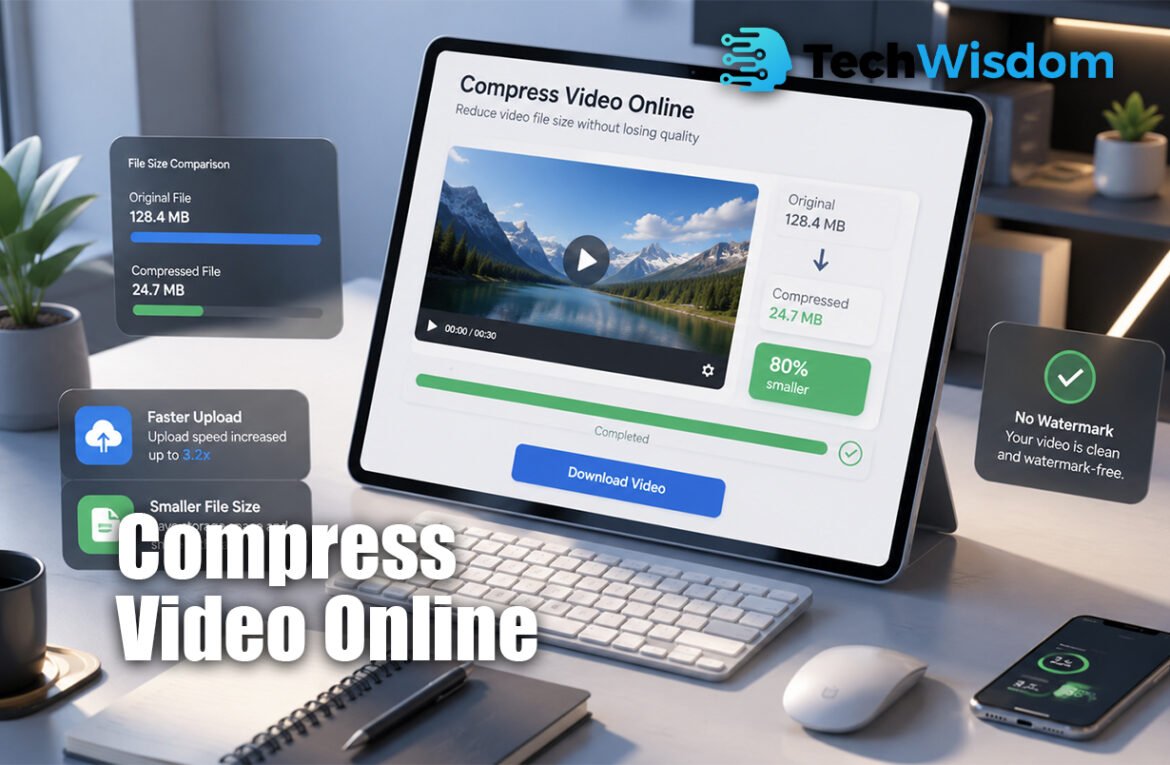
Large video files can be hard to upload, email, save, or share. They may use too much storage and take a long time to send. A browser-based compressor helps you reduce the file size without installing software. When you Compress Video Online, you can prepare videos for social media, messaging apps, websites, school projects, and work. A good tool also gives you a clean result without adding its logo or name.
What Does Video Compression Without a Watermark Mean?
Video compression reduces the amount of data inside a video file. It can lower the bitrate, resolution, frame rate, or audio quality. The goal is to create a smaller file while keeping the picture and sound clear enough for its purpose.
A watermark is a logo, website name, symbol, or text added to a video. A tool that offers compression without a watermark does not place its branding on your final file. It does not normally remove a watermark that already exists in the original video.
Why Should You Compress Large Video Files?
A smaller video is easier to manage. It takes less space on your phone, computer, memory card, or cloud account. It may also upload faster because there is less data to transfer through your internet connection.
People often Compress Video Online when they need to send a file through email, WhatsApp, a job form, or a learning platform. Compression is also useful for website videos because smaller files can load faster and use less mobile data.
How to Compress a Video Online Without Watermark
First, choose a trusted compressor that clearly says it provides watermark-free downloads. Check its upload limit, supported formats, privacy policy, and free-plan rules. Some tools allow free compression but add branding during export, so read the details before uploading an important file.
Upload your video, select a compression level, and start the process. Many tools provide simple choices such as low, medium, or high quality. After processing, preview the result, check all four corners for branding, and download the file. Keep the original video until you confirm that the new version works correctly.
Best Settings for Smaller Files and Clear Quality
Start with medium compression instead of the strongest setting. Medium compression often gives a useful balance between file size and picture quality. If the result is still too large, reduce the bitrate or resolution in increments.
For general sharing, MP4 with H.264 is a practical option because it works on many devices and platforms. A resolution of 720p may be enough for messaging and small screens. Use 1080p when faces, text, products, or presentation slides need more detail.
Avoid changing every setting at once. It becomes difficult to know which change caused poor quality. Make one adjustment, preview the video, and compare it with the original before making another change.
How Resolution, Bitrate, and Frame Rate Affect Size
Resolution is the number of pixels shown in each video frame. Common levels include 4K, 1080p, 720p, and 480p. Lowering a 4K video to 1080p can greatly reduce its size, but some fine detail will be removed.
Bitrate is the amount of video data used each second. A high bitrate normally gives better detail and a larger file. A lower bitrate creates a smaller file, but very low settings may cause blur, blocks, or weak colors.
Frame rate means how many images appear each second. Common rates include 24, 30, and 60 frames per second. Reducing 60 FPS to 30 FPS can lower the file size, but fast movement may look less smooth.
How to Compress MP4, MOV, AVI, and Other Formats
Most browser tools support popular formats such as MP4, MOV, AVI, MKV, and WebM. However, the exact list depends on the compressor. Check format support before starting, especially when your video comes from editing software or a professional camera.
MP4 is usually the easiest format for sharing. MOV is common on Apple devices, while MKV can contain several audio tracks and subtitles. When you Compress Video Online, check whether the tool keeps subtitles, extra audio, orientation, and other important file details.
Converting a video to MP4 may improve compatibility, but conversion and compression are not the same. Conversion changes the container or format. Compression mainly reduces the amount of data and file size.
How to Reach a Specific File Size
Some websites and forms only accept videos below a fixed limit. In this case, choose a compressor with a target-size option. You can enter a required size, such as 25 MB, 50 MB, or 100 MB, and the tool will adjust the settings.
Be realistic about the target. A long 4K video cannot become extremely small without a clear loss of quality. Trim unwanted scenes before compression, remove audio when it is not needed, or lower the resolution to reach a strict limit.
Always keep the final file slightly below the platform limit. A file listed as exactly 25 MB may still be rejected because different systems calculate file sizes in different ways.
Compressing Videos for Email, WhatsApp, and Social Media
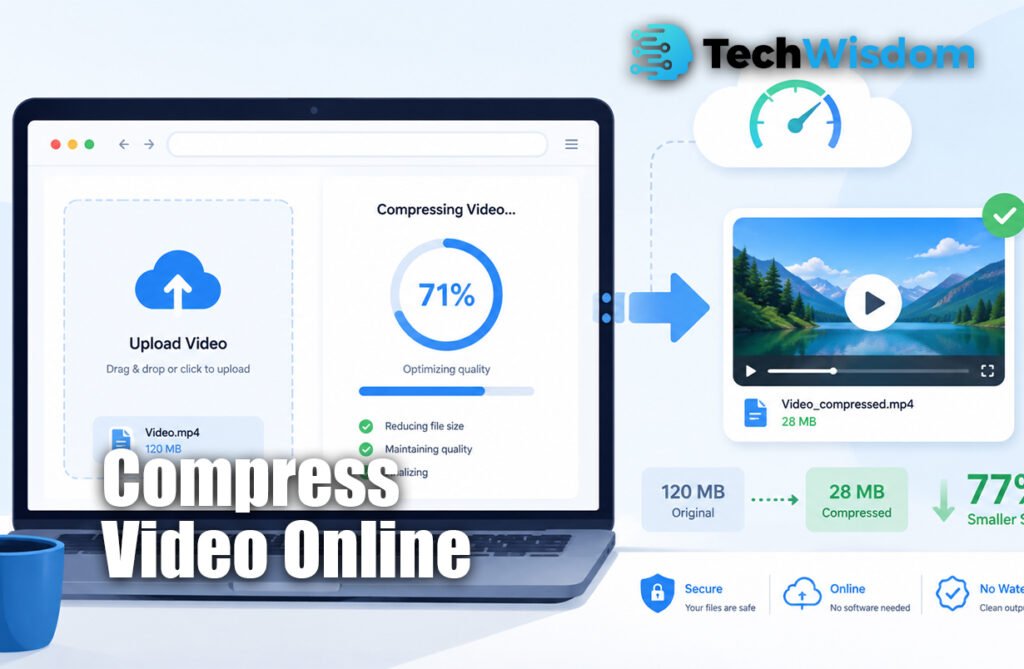
For email, focus on a small file and clear speech. Shorten the video, choose MP4, and use 720p when high resolution is not necessary. A cloud-sharing link may be better when strong compression makes the video difficult to watch.
For WhatsApp and other messaging apps, use a common format and moderate quality. For social media, keep the correct shape, such as 9:16 for vertical video, 16:9 for landscape, or 1:1 for square posts.
Social platforms often compress videos again after upload. Do not reduce the quality too much before posting. Give the platform a clear source file so its own compression does not make the result look very poor.
How to Protect Your Privacy During Compression
Online tools may process files in the cloud or inside your browser. Cloud tools upload the video to a remote server. Browser-based tools may process it directly on your device, although you should still check the service’s privacy statement.
Before you Compress Video Online, find out how long uploaded files are stored and whether they are deleted automatically. Look for secure transfer, clear data rules, and an easy way to remove files.
Avoid uploading private business recordings, medical information, legal evidence, identity documents, or personal family videos to an unknown website. For sensitive content, trusted desktop software or local browser processing may be a safer choice.
Common Compression Problems and Simple Fixes
If the video looks blurry, increase the quality, bitrate, or resolution. If the file is still too large, trim its length, lower the resolution, reduce the audio quality, or choose a smaller target size.
If the video does not play, the codec may not work on your device. Try MP4 with H.264 for wider support. If the sound is unclear, keep a higher audio bitrate. For music videos, avoid very low audio settings.
Do not compress the same file many times. Each new lossy compression can remove more detail. Always work from the original high-quality video when possible.
FAQs
Can I compress a video without losing quality?
Some quality data is normally removed during compression. However, balanced settings can make the loss difficult to notice. Use medium compression and preview the result.
Does an online compressor add a watermark?
Not every tool does. Check whether the free version provides watermark-free export before uploading your video.
What is the best format for a compressed video?
MP4 with H.264 is a good general choice because it offers useful quality, reasonable size, and wide device support.
Can I compress a video on my phone?
Yes. Many online compressors work in mobile browsers. Use Wi-Fi for large videos to avoid high mobile-data use.
Why is my compressed video still large?
The original may already be compressed. Reduce the resolution, bitrate, frame rate, audio quality, or video length to make it smaller.