Instagram can become tiring when the same topics, creators, or Reels appear again and again. You may also see posts linked to old interests that no longer match your life. Learning How to Reset Instagram Feed helps you refresh suggested content, improve recommendations, and take more control of what appears in Feed, Explore, and Reels.
What Resetting Your Instagram Feed Really Changes
Resetting your feed mainly changes the content Instagram recommends from accounts you do not follow. It can refresh suggestions in Feed, Explore, and Reels. After the reset, Instagram begins learning your interests again from the posts you watch, like, save, share, and skip.
The reset does not delete your photos, messages, followers, comments, or saved posts. It also does not unfollow accounts for you. You will still see posts from people and pages you already follow, so you may need to review those accounts separately.
Steps to Reset Your Instagram Feed in the App
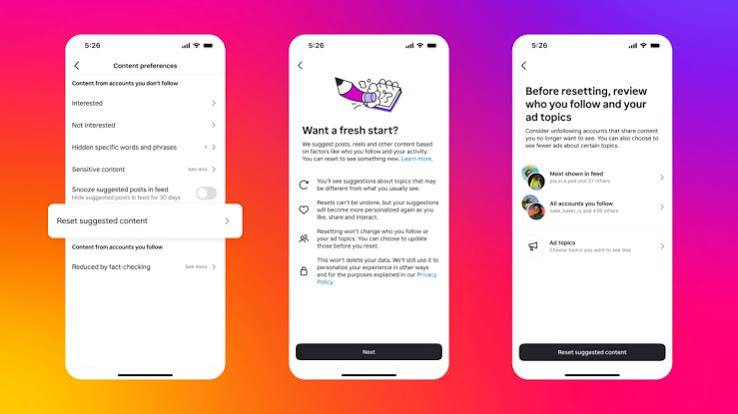
The easiest way to learn How to Reset Instagram Feed is to use Instagram’s Reset suggested content setting. Open the Instagram app, tap your profile picture, and open the three-line menu. Go to Content preferences, choose Reset suggested content, and follow the steps on the screen.
Instagram may let you review the accounts you follow before you confirm. Read the final message carefully, then tap the reset button. Menu names may differ on Android, iPhone, or older app versions. Update Instagram if you cannot find the option.
How to Refresh the Explore Page
Your Explore page is based on your likes, saves, watch time, and profile visits. To improve it, open Explore and tap a post you do not want. Tap the three dots, then choose Not interested. Repeat this action for several unwanted posts.
Next for topics you truly enjoy and interact with good content. Like useful posts, save strong ideas, and follow trusted creators. These actions give Instagram better signals and help Explore change faster.
How to Improve Reels Recommendations
Reels often change because of watch time. Even when you dislike a video, watching it until the end may tell Instagram that the topic keeps your attention. Swipe away quickly from unwanted Reels and use Not interested when the same type of video appears often.
After using How to Reset Instagram Feed, watch Reels that match your real interests. Follow creators you enjoy, save helpful videos, and avoid replaying content you do not want. Instagram needs repeated signals, so one action may not change everything.
How to Train the Algorithm After a Reset
A reset gives you a fresh starting point, but your next actions shape the new feed. For a few days, interact carefully. Like only useful posts, save content you want to find again, and follow accounts that match your current goals.
Do not “hate-watch” videos or open profiles only because you are curious. Instagram may see this as interest. Use Not interested, unfollow noisy accounts, and spend more time on content you want to keep seeing.
How to Remove Unwanted Posts and Topics
You can control your feed without doing a full reset. Tap the three dots on a suggested post and choose Not interested. You may also be able to hide suggested posts for a set time or block suggestions containing certain words, phrases, or emojis.
Use Content preferences to review sensitive or political content settings when available. These tools are helpful when one subject keeps appearing, such as celebrity news, sports, dieting, politics, or a trend you no longer follow.
How Following, Favorites, and Mute Give You More Control
The Following feed shows recent posts from accounts you chose to follow. The Favorites feed gives more attention to selected accounts, such as close friends, trusted news pages, or helpful creators. These options reduce your dependence on suggested content.
Use Mute when you do not want to unfollow someone but prefer not to see their posts or Stories. The person is not normally told that you muted them. These tools help you refresh the feed without removing important social connections.
Why the Reset Option May Be Missing
The reset setting may be missing because your Instagram app is old, the feature has not reached your account, or the menu has moved. Update the app from the Google Play Store or Apple App Store, restart your phone, and check Content preferences again.
You can also log out and back in or reinstall the app to fix a menu problem. However, these steps do not reset the algorithm by themselves. When the feature is still missing, use Not interested, Following, Favorites, Mute, and controls.
Does Clearing Cache or Reinstalling Instagram Work?
Clearing the app cache can fix slow loading, broken images, or missing menus on some Android phones. Reinstalling Instagram may also repair app files. However, neither action normally removes the recommendation history connected to your account.
Logging out also does not create a fresh feed. The correct answer to How to Reset Instagram Feed is to use the official reset setting when it is available, then guide the algorithm with better actions.
How Long It Takes for Recommendations to Change
Instagram does not promise one fixed time. You may notice some changes quickly, but a better feed often takes several days of careful use. The speed depends on how often you use Instagram and how clearly you show what you like or dislike.
Be patient and stay consistent. Mark unwanted posts, follow better accounts, and avoid watching content that does not help you. A reset works best when your daily activity supports the new direction.
Common Mistakes to Avoid
Do not expect a reset to remove accounts you already follow. Review your Following list and unfollow or mute pages that still post unwanted content. Also, do not click every strange suggestion, because profile visits and watch time may affect future recommendations.
Avoid third-party apps that promise to “clean” or “hack” your Instagram algorithm. They may ask for your password or account access. Use Instagram’s own settings to protect your privacy and keep your account safe.
Start Fresh and Keep Your Feed Useful
Now you know How to Reset Instagram Feed and rebuild your recommendations. Use Reset suggested content, clean up the accounts you follow, and guide the algorithm with clear choices. A fresh feed will not stay useful by itself, so keep using Instagram’s controls whenever your interests change.
FAQs
Will resetting my feed delete my posts?
No. It will not delete your posts, Reels, messages, followers, likes, or comments.
Does the reset unfollow everyone?
No. You must review and unfollow accounts yourself.
Can I reset only the Explore page?
The official reset may affect Feed, Explore, and Reels together. You can still improve Explore by using Not interested.
Will reinstalling Instagram reset recommendations?
No. Reinstalling may fix app problems, but it does not normally reset your account’s recommendations.
How quickly will my feed improve?
You may see early changes quickly, but stronger results can take several days of careful activity.